Feature focus: Plans
Feature focus is a short series on the quieter parts of Irkless. This week: plans.
It's Friday afternoon. Today is full of work, and the weekend has its own list: the hedge and a present for your sister. Put the weekend into Today and it buries Monday. Make a "Weekend" project and you have to pull those tasks out of the projects they belong to, then put them back on Monday.
A plan is the third option. It's a named list of what you mean to do over a stretch of time, and it sits in Today's spot until you're finished with it.
Making one
Hover over Today in the sidebar and a small arrow appears. Click it, choose Create new plan…, and give the plan a name and an icon. A house works well for "Weekend". Tick Include any due task if you also want anything overdue or due within a day to turn up, in a group of its own.
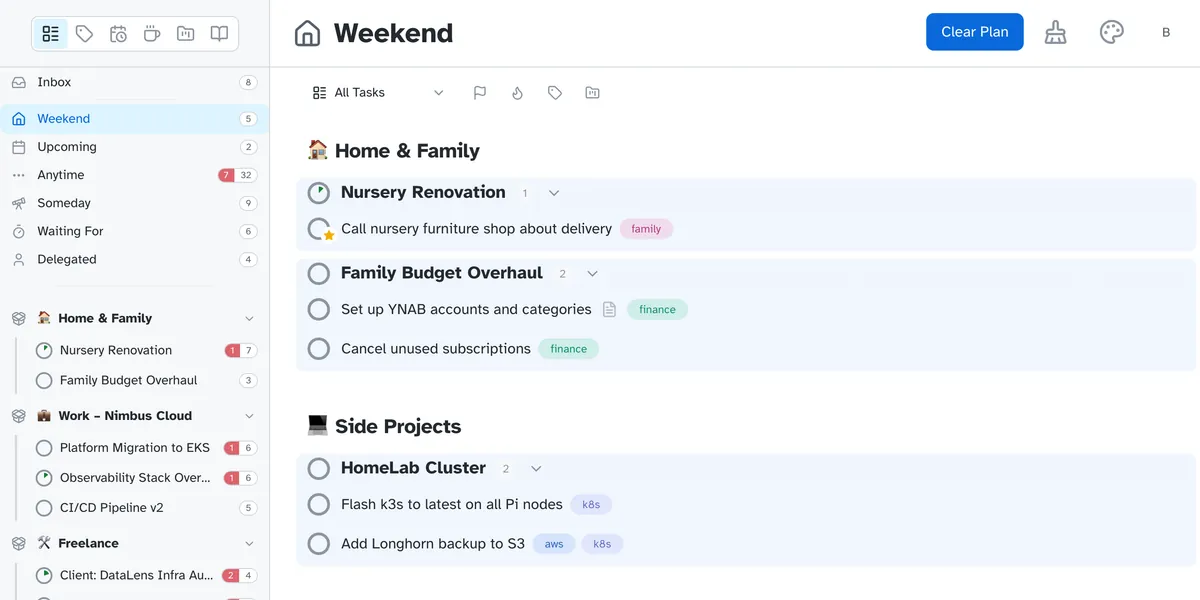
Then drag tasks, or whole projects, onto the plan in the sidebar. They don't move. The hedge is still in Garden and the present is still in Birthdays, and both are in Weekend too. Taking something out of a plan leaves it exactly where it was.
Inside the plan, tasks are grouped by area and project, so it reads like a short version of your whole list. Anything you add while you're looking at the plan joins it.
Swapping back
Double-click Today to switch between Today and the last plan you used. On Monday morning, double-click and your work list is back as you left it. When the weekend's over, Clear Plan empties it, or you can delete the plan. Neither touches the tasks.
Plans suit anything with an edge to it, like a trip or the week before a move.
Where it works
Plans work on the web, in the terminal app and in the Mac, iPhone and iPad apps. On Apple Watch you can choose which plan is showing. The double-click swap is on the web; in the other apps you pick the plan from a list.
Today should be about today. The rest can wait in a plan.